
Google Pics vs Canva is the debate every Etsy seller eventually has with themselves, usually right after a product photo comes out looking more like a garage sale flyer than a storefront listing. So you open whatever editing app is already on your phone, and for most people that means one of two tools: Google’s built in photo editor, what a lot of sellers casually call “Google Pics” in reference to Google Photos, or Canva, the drag and drop design app that half of Etsy’s top shops swear by.
Both are free to start, and both promise to make your listings look more professional in minutes. However, they solve completely different problems, and picking the wrong one for the job wastes time you don’t have during a busy shop season. Therefore, here’s the real Google Pics vs Canva comparison, updated with what each tool actually offers in 2026.
Google Pics vs Canva: Why Etsy Sellers Keep Comparing These Two
This isn’t a random matchup. In fact, sellers land on this question because of a few recurring pain points:
- Speed vs polish. Google Photos fixes a photo fast, while Canva builds that photo into a finished graphic.
- Budget. Both have free tiers, but sellers understandably want to know which free tier actually covers what an Etsy shop needs before paying for anything.
- Skill level. Not everyone wants to learn a full design tool just to sell candles or stickers.
- Consistency. Etsy rewards shops with a cohesive visual brand, and that’s a different job entirely than simply cleaning up a single image.
- Mobile workflow. Because most sellers edit on their phone between orders, ease of use on mobile matters as much as the feature list.
What Google Photos (Google Pics) Actually Does in 2026
Google rolled its once Pixel exclusive editing tools out to every Google Photos user for free, and it has continued adding to that toolkit throughout 2026. According to Google’s own support documentation, here’s what’s currently built in:
- Magic Eraser removes distracting objects from the background of a product shot, such as a stray cable or a messy corner of the desk.
- Magic Editor and Reimagine use generative AI to swap backgrounds, fill in gaps after a crop, and even change lighting or skies with a simple text prompt.
- Auto Frame suggests better crops and can generatively extend the edges of a photo instead of cutting off part of the product.
- Photo Unblur and Portrait Light sharpen soft images and let you reposition the light source after the fact.
- New portrait touch up controls for skin, eyes, teeth, and brows rolled out in 2026, although these matter more for people focused shops than product photography.
All of this ships free with any Google account. That said, there’s no template library, no text tool for adding pricing or sale banners, and no way to design a multi image listing cover. In short, it’s built to fix a photo, not to design one.
What Canva Actually Does in 2026
Canva, on the other hand, is a design platform first and a photo editor second. Its pull for Etsy sellers comes from templates: listing photo layouts, Instagram promo graphics, shop banners, business cards, and packaging inserts, all searchable and editable within minutes.
According to Canva’s official pricing page, the 2026 lineup looks like this:
- Free plan: a solid template library, a basic background remover, and a shared pool of Magic Studio AI credits, roughly 50 a month.
- Canva Pro: about 18 dollars a month, or roughly 144 dollars billed yearly. It unlocks the full premium template and stock library, Magic Resize, unlimited Background Remover use, brand kits, and a much larger AI credit allowance.
- Canva Business: around 25 dollars per seat per month, aimed more at teams than solo sellers.
For a one person Etsy shop, Free or Pro covers nearly everything. Ultimately, the real value isn’t any single tool, but rather the ability to reuse a branded template across every new listing so the whole shop looks like one cohesive brand instead of a pile of unrelated photos.
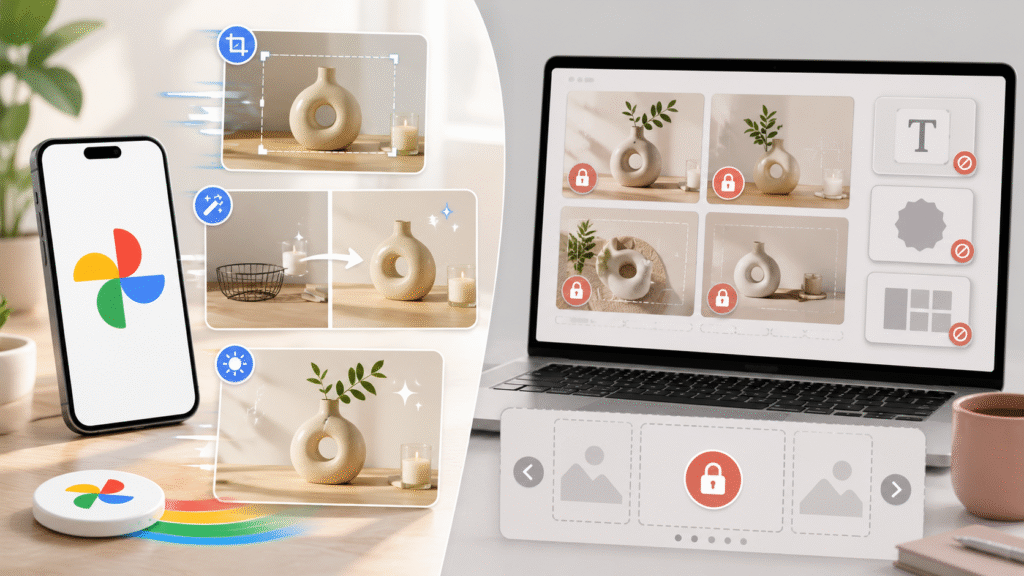
Google Pics vs Canva: Pros and Cons for Google Photos
| Pros | Cons |
| →Completely free, with no upgrade needed →The fastest option for quick fixes such as cropping, unblurring, and removing objects →AI background and lighting edits that look genuinely natural →Already installed on every Android phone and most iPhones | →No templates, text tools, or layout options →Can’t add sale badges, pricing, or branded graphics →No way to keep a consistent visual style across listings →Not built for multi-photo carousels or social promo graphics |
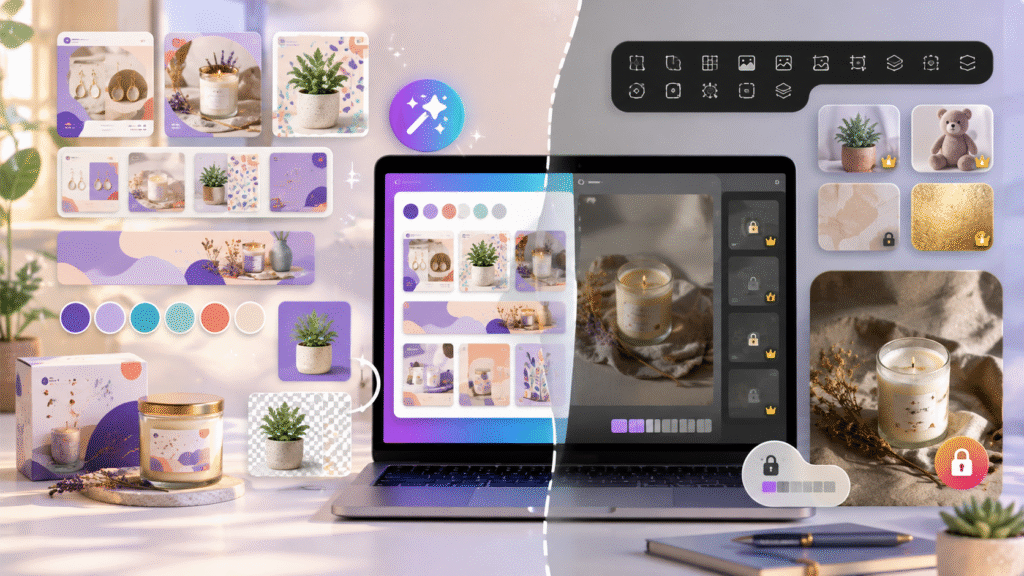
Google Pics vs Canva: Pros and Cons for Canva
| Pros | Cons |
| →Thousands of Etsy-specific templates for listings, banners, and social posts →An easy way to build a consistent shop brand across every photo →One tool that covers listing photos, mockups, promo graphics, and packaging design →A background remover and Magic Studio AI included even on the free plan | →A steeper learning curve than a basic photo editor →The best features sit behind the Pro plan →Not designed for fixing an actual photo, such as blur or lighting, as precisely as Google Photos →AI credits run out fast on the free tier if you rely on it heavily |
Google Pics vs Canva Head to Head Comparison
| Category | Google Photos | Canva |
|---|---|---|
| Cost | Free | Free plan or 18 dollars/month Pro |
| Best for | Fixing a single photo | Designing a full listing or brand |
| Templates | None | Thousands, many Etsy specific |
| Background removal | Yes, via Magic Eraser/Editor | Yes, one click Background Remover |
| Text and graphics | Not available | Full text, sticker, and layout tools |
| Learning curve | Very low | Moderate |
| Mobile experience | Excellent | Good, slightly more setup |
Google Pics vs Canva: Which One Should You Actually Use?
Here’s the honest answer: most successful Etsy shops end up using both, just at different steps of the process.
First, use Google Photos right after you take the picture. Straighten the crop, erase a background distraction, unblur a shaky shot, and fix the lighting. It takes under a minute, and it’s free forever.
Then, bring that cleaned up photo into Canva to build the actual listing image. Add the shop’s brand colors, drop it into a template with white space for text, size it for Etsy’s cover photo dimensions, and reuse the same layout for your next twenty listings so the whole shop feels designed on purpose.
If you only have time for one tool and your photos are already decent, Canva generally gives you more leverage for an Etsy business, because branding and consistency directly affect click through rate. On the other hand, if your photos are the actual problem, whether blurry, oddly lit, or full of background clutter, Google Photos solves that faster than anything else on the market, and at zero cost. For general photography standards, Etsy’s Seller Handbook is also worth a look before you start editing.
FAQ: Google Pics vs Canva for Etsy Sellers
Is Google Photos or Canva better for Etsy listing photos?
Google Photos is better for fixing an existing photo, such as removing objects or sharpening blur. Canva, meanwhile, is better for designing the final listing image with templates, text, and branding.
Do I need to pay for Canva to sell on Etsy?
No. Canva’s free plan includes templates, a basic background remover, and AI credits, which is enough for most new shops. That said, Canva Pro, around 18 dollars a month in 2026, is worth it once you’re publishing frequently or want the full premium template library.
Can Google Photos replace Canva for Etsy branding?
Not really. Google Photos has no templates, text tools, or layout features, so it can’t build a consistent branded look across listings the way Canva can
Which tool is faster for a quick edit?
Google Photos, because its AI tools like Magic Eraser and Auto Frame are built for one tap fixes, whereas Canva involves picking a template and adjusting a layout.
Is Canva good for Etsy shop banners and social posts too?
Yes. Canva covers shop banners, Instagram and Pinterest promo graphics, and packaging inserts, all from the same account, which is a big part of why sellers keep it around beyond just listing photos.
Should a brand new Etsy seller start with Google Photos or Canva first?
Generally, a brand new seller should start with Google Photos, since there’s nothing to learn and no template to pick before you can fix a photo. Afterward, once you have a handful of listings live and some sales coming in, it’s usually a good idea to move into Canva so you can build a consistent look across the shop. In other words, start simple, then layer on branding once the basics are working. Otherwise, jumping straight into Canva templates before your photos are actually clean just means polishing a flaw instead of fixing it.
Want Ready Made Canva Templates for Your Shop?
If Canva is the direction you’re leaning toward after this Google Pics vs Canva comparison, don’t start from a blank page. Check out proven Canva templates built specifically for Etsy sellers, featuring layouts already optimized to drive sales.
Final Thoughts on Google Pics vs Canva
In the end, the Google Photos vs Canva decision isn’t really about which app is objectively better, but about matching the right tool to the right stage of your workflow. First, consider what your listing actually needs: if the photo itself is the problem, then Google Photos is clearly the faster fix. Otherwise, if the photo is fine but the overall presentation feels inconsistent, Canva is obviously the stronger choice. Meanwhile, sellers who treat this as an either-or decision usually end up frustrated, since each tool is, after all, built for a different job. So, instead of asking which app wins outright, ask which step of your process still needs fixing today, and start there.
